Keyboard Shorcuts (Microsoft Windows)

Keyboard Shorcuts (Microsoft Windows)


1. CTRL+C (Copy)
2. CTRL+X (Cut)
3. CTRL+V (Paste)
4. CTRL+Z (Undo)
5. DELETE (Delete)
6. SHIFT+DELETE (Delete the selected item permanently without placing the item in the Recycle Bin)
7. CTRL while dragging an item (Copy the selected item)
8. CTRL+SHIFT while dragging an item (Create a shortcut to the selected item)
9. F2 key (Rename the selected item)
10. CTRL+RIGHT ARROW (Move the insertion point to the beginning of the next word)
11. CTRL+LEFT ARROW (Move the insertion point to the beginning of the previous word)
12. CTRL+DOWN ARROW (Move the insertion point to the beginning of the next paragraph)
13. CTRL+UP ARROW (Move the insertion point to the beginning of the previous paragraph)
14. CTRL+SHIFT with any of the arrow keys (Highlight a block of text)
SHIFT with any of the arrow keys (Select more than one item in a window or on the desktop, or select text in a document)
15. CTRL+A (Select all)
16. F3 key (Search for a file or a folder)
17. ALT+ENTER (View the properties for the selected item)
18. ALT+F4 (Close the active item, or quit the active program)
19. ALT+ENTER (Display the properties of the selected object)
20. ALT+SPACEBAR (Open the shortcut menu for the active window)
21. CTRL+F4 (Close the active document in programs that enable you to have multiple documents opensimultaneou sly)
22. ALT+TAB (Switch between the open items)
23. ALT+ESC (Cycle through items in the order that they had been opened)
24. F6 key (Cycle through the screen elements in a window or on the desktop)
25. F4 key (Display the Address bar list in My Computer or Windows Explorer)
26. SHIFT+F10 (Display the shortcut menu for the selected item)
27. ALT+SPACEBAR (Display the System menu for the active window)
28. CTRL+ESC (Display the Start menu)
29. ALT+Underlined letter in a menu name (Display the corresponding menu) Underlined letter in a command name on an open menu (Perform the corresponding command)
30. F10 key (Activate the menu bar in the active program)
31. RIGHT ARROW (Open the next menu to the right, or open a submenu)
32. LEFT ARROW (Open the next menu to the left, or close a submenu)
33. F5 key (Update the active window)
34. BACKSPACE (View the folder onelevel up in My Computer or Windows Explorer)
35. ESC (Cancel the current task)
36. SHIFT when you insert a CD-ROMinto the CD-ROM drive (Prevent the CD-ROM from automatically playing)


Dialog Box - Keyboard Shortcuts
1. CTRL+TAB (Move forward through the tabs)
2. CTRL+SHIFT+TAB (Move backward through the tabs)
3. TAB (Move forward through the options)
4. SHIFT+TAB (Move backward through the options)
5. ALT+Underlined letter (Perform the corresponding command or select the corresponding option)
6. ENTER (Perform the command for the active option or button)
7. SPACEBAR (Select or clear the check box if the active option is a check box)
8. Arrow keys (Select a button if the active option is a group of option buttons)
9. F1 key (Display Help)
10. F4 key (Display the items in the active list)
11. BACKSPACE (Open a folder one level up if a folder is selected in the Save As or Open dialog box)

Microsoft Natural Keyboard Shortcuts
1. Windows Logo (Display or hide the Start menu)
2. Windows Logo+BREAK (Display the System Properties dialog box)
3. Windows Logo+D (Display the desktop)
4. Windows Logo+M (Minimize all of the windows)
5. Windows Logo+SHIFT+M (Restorethe minimized windows)
6. Windows Logo+E (Open My Computer)
7. Windows Logo+F (Search for a file or a folder)
8. CTRL+Windows Logo+F (Search for computers)
9. Windows Logo+F1 (Display Windows Help)
10. Windows Logo+ L (Lock the keyboard)
11. Windows Logo+R (Open the Run dialog box)
12. Windows Logo+U (Open Utility Manager)
13. Accessibility Keyboard Shortcuts
14. Right SHIFT for eight seconds (Switch FilterKeys either on or off)
15. Left ALT+left SHIFT+PRINT SCREEN (Switch High Contrast either on or off)
16. Left ALT+left SHIFT+NUM LOCK (Switch the MouseKeys either on or off)
17. SHIFT five times (Switch the StickyKeys either on or off)
18. NUM LOCK for five seconds (Switch the ToggleKeys either on or off)
19. Windows Logo +U (Open Utility Manager)
20. Windows Explorer Keyboard Shortcuts
21. END (Display the bottom of the active window)
22. HOME (Display the top of the active window)
23. NUM LOCK+Asterisk sign (*) (Display all of the subfolders that are under the selected folder)
24. NUM LOCK+Plus sign (+) (Display the contents of the selected folder)
25. NUM LOCK+Minus sign (-) (Collapse the selected folder)
26. LEFT ARROW (Collapse the current selection if it is expanded, or select the parent folder)
27. RIGHT ARROW (Display the current selection if it is collapsed, or select the first subfolder)
Shortcut Keys for Character Map
After you double-click a character on the grid of characters, you can move through the grid by using the keyboard shortcuts:
1. RIGHT ARROW (Move to the rightor to the beginning of the next line)
2. LEFT ARROW (Move to the left orto the end of the previous line)
3. UP ARROW (Move up one row)
4. DOWN ARROW (Move down one row)
5. PAGE UP (Move up one screen at a time)
6. PAGE DOWN (Move down one screen at a time)
7. HOME (Move to the beginning of the line)
8. END (Move to the end of the line)
9. CTRL+HOME (Move to the first character)
10. CTRL+END (Move to the last character)
11. SPACEBAR (Switch between Enlarged and Normal mode when a character is selected)
Microsoft Management Console (MMC)
Main Window Keyboard Shortcuts
1. CTRL+O (Open a saved console)
2. CTRL+N (Open a new console)
3. CTRL+S (Save the open console)
4. CTRL+M (Add or remove a console item)
5. CTRL+W (Open a new window)
6. F5 key (Update the content of all console windows)
7. ALT+SPACEBAR (Display the MMC window menu)
8. ALT+F4 (Close the console)
9. ALT+A (Display the Action menu)
10. ALT+V (Display the View menu)
11. ALT+F (Display the File menu)
12. ALT+O (Display the Favorites menu)

MMC Console Window Keyboard Shortcuts
1. CTRL+P (Print the current page or active pane)
2. ALT+Minus sign (-) (Display the window menu for the active console window)
3. SHIFT+F10 (Display the Action shortcut menu for the selected item)
4. F1 key (Open the Help topic, if any, for the selected item)
5. F5 key (Update the content of all console windows)
6. CTRL+F10 (Maximize the active console window)
7. CTRL+F5 (Restore the active console window)
8. ALT+ENTER (Display the Properties dialog box, if any, for theselected item)
9. F2 key (Rename the selected item)
10. CTRL+F4 (Close the active console window. When a console has only one console window, this shortcut closes the console)
Remote Desktop Connection Navigation
1. CTRL+ALT+END (Open the Microsoft Windows NT Security dialog box)
2. ALT+PAGE UP (Switch between programs from left to right)
3. ALT+PAGE DOWN (Switch between programs from right to left)
4. ALT+INSERT (Cycle through the programs in most recently used order)
5. ALT+HOME (Display the Start menu)
6. CTRL+ALT+BREAK (Switch the client computer between a window and a full screen)
7. ALT+DELETE (Display the Windows menu)
8. CTRL+ALT+Minus sign (-) (Place a snapshot of the active window in the client on the Terminal server clipboard and provide the same functionality as pressing PRINT SCREEN on a local computer.)
9. CTRL+ALT+Plus sign (+) (Place asnapshot of the entire client window area on the Terminal server clipboardand provide the same functionality aspressing ALT+PRINT SCREEN on a local computer.)

Microsoft Internet Explorer Keyboard Shortcuts
1. CTRL+B (Open the Organize Favorites dialog box)
2. CTRL+E (Open the Search bar)
3. CTRL+F (Start the Find utility)
4. CTRL+H (Open the History bar)
5. CTRL+I (Open the Favorites bar)
6. CTRL+L (Open the Open dialog box)
7. CTRL+N (Start another instance of the browser with the same Web address)
8. CTRL+O (Open the Open dialog box,the same as CTRL+L)
9. CTRL+P (Open the Print dialog box)
10. CTRL+R (Update the current Web )

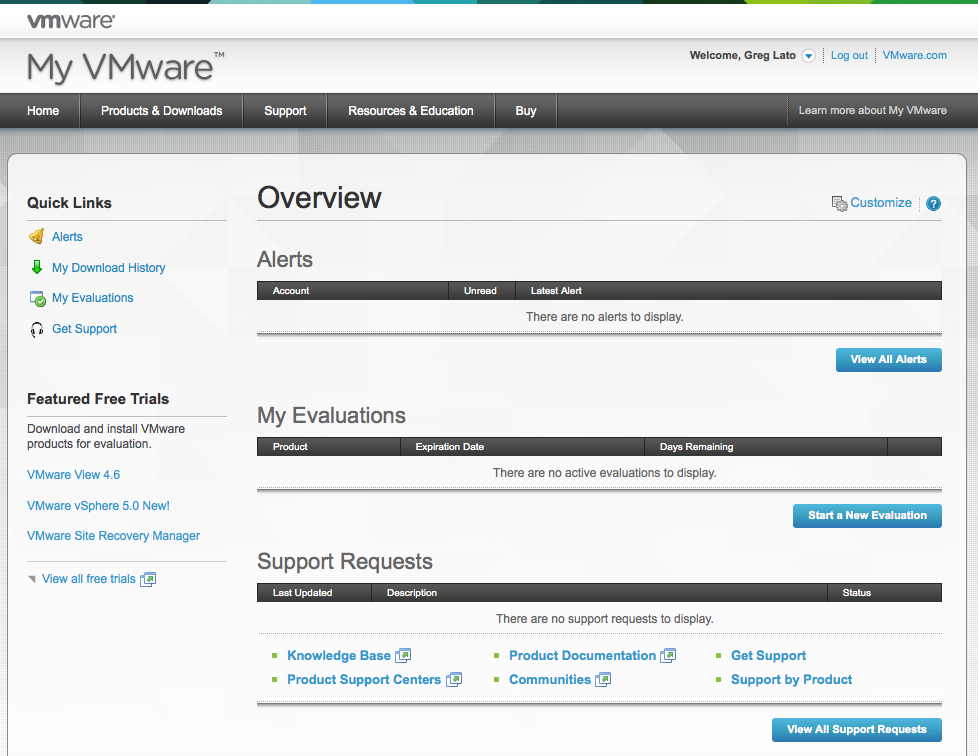
How to add new user on vmware portal

Hi There , if you do not know how to add new user on VMware portal please follow this tutorial :


To add users to a folder:
1.    Log in to My VMware.
2.    Select Users and Permissions from the Quick Links menu.
3.    Click the By Folder tab or the By User tab.
4.    If you are on the:

# By Folder tab, select a folder, then perform one of these options:
-       Click the Actions arrow and click Add User.
-       Click the arrow next to the folder name and click Add User.
Right-click the folder and click Add User.
# By User tab, select a user, select a folder, then perform one of these options:
-       Click the arrow next to the folder name and click Add User.
-       Right-click the folder and click Add User.
-        
5.    Enter the email address and name of the user you want to add to the folder and click Add.
Notes:                           
Users who are not associated with the account will receive an email invitation to join the account. New users must accept the invitation and create a My VMware profile if they do not already have one. If you enter an incorrect email address, click the delete button to remove the user, then repeat step 5.

6.    Repeat steps 4 and 5 for any additional users. When done adding users, click Continue.

Note: You can add a maximum of 50 users at one time.

7.    Select the folders to which you want to add the user(s).
8.    Set the permissions for the user(s). For more information about permissions, see See here for more details.
9.    Click Continue.
10.  Click Confirm.

Removing yourself from an account
Note: If you are the Super User or Procurement Contact, you have to reassign your role before you can remove yourself. For more information, see Changing the Super User or Procurement Contact in Super Users and Procurement Contacts in My VMware
To remove yourself from an account:
1.    Log in to My VMware.
2.    Select Account Summary from the Quick Links menu.
3.    Select the account from which you want to remove yourself.
4. Click the Actions menu and select Remove Account:


Clone Disks using Linux dd


Simply, dd is tool to convert or copy a file.. And what is lovely about *NIX based systems have disks and most hardware as hardware nodes accessible as files! Usually, on Linux, hard disks are accessible via /dev/hd[a] (For ATA Drives) or /dev/sd[a] (For SCSI or SATA Drives).


First Scenario is to image the hard drive to a USB disk, Assuming that we have booted a Linux Live CD, The USB Disk mounted to /media/disk and the hard disk is accessible via /dev/sda.

We run:

dd if=/dev/sda of=/media/disk/hard-disk-image-name.img

Note: if = input file, and of = output file

Now, lets say we want to restore the image to hard disk:

dd if=/media/disk/hard-disk-image-name.img of=/dev/sda

What if we want to save the image compressed and restore it from a compressed file, Assuming that you know gzip.

Disk to image compressed:

dd if=/dev/sda | gzip -9 | dd of=/media/disk/hard-disk-image-name.img.gz

Restore compressed Image to disk:

dd if=/media/disk/hard-disk-image-name.img.gz | gzip -d | dd of=/dev/sda

Ok, now all the above is about saving to an image on a USB disk, how about we want to write to an image or disk over the network, we have two options here, using SSH or Netcat!

I will be providing examples using Netcat, however, over SSH is similar, Its the same concept.

Disk to Disk or image over network (Its a matter of chaning the output file), assuming that we have booted a Live CD and we have a network configured on both linux machines on Network: 10.0.0.0/24, Master Machine IP: 10.0.0.1, and slave Machine is 10.0.0.2

Disk to disk over network, as I said above, it could be written to a USB disk image by changing the output file:

On Slave:

nc -l -p 9000 | dd of=/dev/sda

Note: Netcat options are as follows: -l is to listen to a port, -p to specify the port number to listen on.

On Master:

dd if=/dev/sda | nc 10.0.0.2 9000

Note: Netcat is going to connect to the slave machine IP and port as specified above.

Now, you can even using gzip over network if you are conservative about the bandwidth!

Cisco Command Summary


Cisco Router Configuration Commands

Requirement
Cisco Command
Set a console password to cisco
Router(config)#line con 0
Router(config-line)#login
Router(config-line)#password cisco
Set a telnet password
Router(config)#line vty 0 4
Router(config-line)#login
Router(config-line)#password cisco
Stop console timing out
Router(config)#line con 0
Router(config-line)#exec-timeout 0 0
Set the enable password to cisco
Router(config)#enable password cisco
Set the enable secret password to peter.
This password overrides the enable password and is encypted within the config file
Router(config)#enable secret peter
Enable an interface
Router(config-if)#no shutdown
To disable an interface
Router(config-if)#shutdown
Set the clock rate for a router with a DCE cable to 64K
Router(config-if)clock rate 64000
Set a logical bandwidth assignment of 64K to the serial interface
Router(config-if)bandwidth 64
Note that the zeroes are not missing
To add an IP address to a interface
Router(config-if)#ip addr 10.1.1.1 255.255.255.0
To enable RIP on all 172.16.x.y interfaces
Router(config)#router rip
Router(config-router)#network 172.16.0.0
Disable RIP
Router(config)#no router rip
To enable IRGP with a AS of 200, to all interfaces
Router(config)#router igrp 200
Router(config-router)#network 172.16.0.0
Disable IGRP
Router(config)#no router igrp 200
Static route the remote network is 172.16.1.0, with a mask of 255.255.255.0, the next hop is 172.16.2.1, at a cost of 5 hops
Router(config)#ip route 172.16.1.0 255.255.255.0 172.16.2.1 5
Disable CDP for the whole router
Router(config)#no cdp run
Enable CDP for he whole router
Router(config)#cdp run
Disable CDP on an interface
Router(config-if)#no cdp enable

Cisco Router Show Commands

Requirement
Cisco Command
View version information
show version
View current configuration (DRAM)
show running-config
View startup configuration (NVRAM)
show startup-config
Show IOS file and flash space
show flash
Shows all logs that the router has in its memory
show log
View the interface status of interface e0
show interface e0
Overview all interfaces on the router
show ip interfaces brief
View type of serial cable on s0
show controllers 0 (note the space between the 's' and the '0')
Display a summary of connected cdp devices
show cdp neighbor
Display detailed information on all devices
show cdp entry *
Display current routing protocols
show ip protocols
Display IP routing table
show ip route
Display access lists, this includes the number of displayed matches
show access-lists
Check the router can see the ISDN switch
show isdn status
Check a Frame Relay PVC connections
show frame-relay pvc
show lmi traffic stats
show frame-relay lmi
Display the frame inverse ARP table
show frame-relay map

Cisco Router Basic Operations

Requirement
Cisco Command
Enable
Enter privileged mode
Return to user mode from privileged
disable
Exit Router
Logout or exit or quit
Recall last command
up arrow or <Ctrl-P>
Recall next command
down arrow or <Ctrl-N>
Suspend or abort
<Shift> and  <Ctrl> and 6 then x
Refresh screen output
<Ctrl-R>
Compleat Command
TAB


Cisco Router Copy Commands

Requirement
Cisco Command
Save the current configuration from DRAM to NVRAM
copy running-config startup-config
Merge NVRAM configuration to DRAM
copy startup-config running-config
Copy DRAM configuration to a TFTP server
copy runing-config tftp
Merge TFTP configuration with current router configuration held in DRAM
copy tftp runing-config
Backup the IOS onto a TFTP server
copy flash tftp
Upgrade the router IOS from a TFTP server
copy tftp flash

Cisco Router Debug Commands

Requirement
Cisco Command
Enable debug for RIP
debug ip rip
Enable summary IGRP debug information
debug ip igrp events
Enable detailed IGRP debug information
debug ip igrp transactions
Debug IPX RIP
debug ipx routing activity
Debug IPX SAP
debug IPX SAP
Enable debug for CHAP or PAP
debug ppp authentication
Switch all debugging off
no debug all
undebug all

Top 10 Important command prompt's commands

1. ipconfig :
                  This is the top most command for seeing the ip address,subnet mask and default gateway also includes display and flush DNS cache, re-register the system name in DNS..  This will most useful tool for viewing and troubleshooting TCP/IP problem.


  • To view ip ,subnet mask address : ipconfig
  • To view all TCP/IP information, use: ipconfig /all
  • To view the local DNS cache, use: ipconfig /displaydns
  • To delete the contents in the local DNS cache, use: ipconfig /flushdns 
  •  

2.systeminfo

Have a need to display operating system configuration information for a local or remote machine, including service pack levels? Then systeminfo is the tool to use. When I need to connect to a system that I am not familiar with, this is the first tool I run. The output of this command gives me all the info I need including: host name, OS type, version, product ID, install date, boot time and hardware info (processor and memory). Also knowing what hot fixes are installed can be a big help when troubleshooting problems. This tool can be used to connect to a machine remotely using the following syntax: SYSTEMINFO /S system /U user


3. tasklist and taskkill 

If you work with Task Manager (ctrl+alt+del) ,you can easily understand this.  Task list is list of task which are running on windows currently.  If you open any application,it will be added to task.

To List the Tasks type in cmd as :

          tasklist
 This will show the list of task which are running as shown in the picture


To stop the Process or task ,there is two methods :
Using Image Name:
   We can kill the task using its Image Name as follows:
                       tasklist /im notepad.exe

Using Process Id:
  we can stop the process using its process id as follows :
                tasklist /pid 1852


4. type
 type is used to read the text document in command prompt .  You can read multiple text in continuously 

type filename.txt


5.netstat
Need to know who (or what) is making a connection to your computer? Then netstat is the tool you want to run. The output provides valuable information of all connections and listening ports, including the executable used in the connections. In additon to the above info, you can view Ethernet statistics, and resolve connecting host IP Addresses to a fully qualified domain name. I usually run the netstat command using the -a (displays all connection info), -n (sorts in numerical form) and -b (displays executable name) switches.


6.net command
Although this tool is more known as a command, the net command is really like a power drill with different bits and is used to update, fix, or view the network or network settings. 
It is mostly used for viewing (only services that are started), stopping and starting services:
    • net stop server
    • net start server
    • net start (display running services)
and for connecting (mapping) and disconnecting with shared network drives:
    • net use m: \\myserver\sharename
    • net use m: \\myserver\sharename /delete
Other commands used with net command are, accounts (manage user accounts), net print (manage print jobs), and net share (manage shares).
Below are all the options that can be used with the net command.
[ ACCOUNTS | COMPUTER | CONFIG | CONTINUE | FILE | GROUP | HELP |HELPMSG | LOCALGROUP | PAUSE | PRINT | SESSION | SHARE | START |STATISTICS | STOP | TIME | USE | USER | VIEW ]

7 - nslookup - With the Internet, DNS (Domain Name Service) is the key for allowing us to use friendly names when surfing the web instead of needing to remember IP Addresses. But when there are problems, nslookup can be a valuable tool for testing and troubleshooting DNS servers.
Nslookup can be run in two modes: interactive and noninteractive. Noninteractive mode is useful when only a single piece of data needs to be returned. For example, to resolve google.com:


To use the interactive mode, just type nslookup at the prompt. To see all available options, type helpwhile in interactive mode.


Don't let the help results intimidate you. Nslookup is easy to use. Some of the options I use when troubleshooting are:
set ds (displays detailed debugging information of behind the scenes communication when resolving an host or IP Address).
set domain (sets the default domain to use when resolving, so you don't need to type the fully qualified name each time).
set type (sets the query record type that will be returned, such as A, MX, NS)
server NAME (allows you to point nslookup to use other DNS servers than what is configured on your computer)
To exit out of interactive mode, type exit .

8 - ping and tracert - These tools can be helpful with connectivity to other systems. Ping will test whether a particular host is reachable across an IP network, while tracert (traceroute) is used to determine the route taken by packets across an IP network.
To ping a system just type at the prompt: ping www.google.com. By default, ping will send three ICMP request to the host and listen for ICMP “echo response” replies. Ping also includes switches to control the number of echo requests to send (-n ), and to resolve IP addresses to hostname (-a ).
To use tracert, type at the prompt: tracert www.google.comYou can force tracert to not resolve address to hostnames by using the -d switch, or set the desired timeout (milliseconds) for each reply using -w switch.
9 - gpresult - Used mostly in environments that implement group poicies, gpresults (Group Policy Results) verifies all policy settings in effect for a specific user or computer. The command is simple to use, just enter gpresults at the prompt. It can also be used to connect to computers remotely using the /S and /U switches.
10 - netsh - Without a doubt the most powerful command line tool available in Windows. Netsh is like the swiss army knife for configuring and monitoring Windows computers from the command prompt. It capabilities include:
  • Configure interfaces
  • Configure routing protocols
  • Configure filters
  • Configure routes
  • Configure remote access behavior for Windows-based remote access routers that are running the Routing and Remote Access Server (RRAS) Service
  • Display the configuration of a currently running router on any computer
Some examples of what you can do with netsh:
  • Enable or disable Windows firewall:
netsh firewall set opmode disable
  • Enable or disable ICMP Echo Request (for pinging) in Windows firewall:
netsh firewall set icmpsetting 8 enable
netsh firewall set icmpsetting 8 disable
  • Configure your NIC to automatically obtain an IP address from a DHCP server:
netsh interface ip set address "Local Area Connection" dhcp
(For the above command, if your NIC is named something else, use netsh interface ip show config and replace the name at Local Area Connection).
As you can see netsh can do alot. Instead of re-inventing the wheel, check out the following Microsoftarticle for more info on netsh.